Start from your own loadout or a recorded preset
The planner starts empty unless this browser already has a saved plan. Select one weapon and fill the two spell slots. Choosing a spell in one slot disables it in the other, so the same spell cannot occupy both slots. You can leave a slot blank while planning an incomplete setup.
The menu contains six weapons and eleven spells identified in the linked 1.0-era recordings. Their presence in this tool does not mean they are unlocked on your save. Selecting an entry shows the trigger to plan around and a link to its recorded menu.
- Choose a weapon and two different spells, or use a preset below.
- Leave Special skill blank if it is unknown, or enter the skill you have chosen.
- Add your intended Imprints and relics as personal notes.
- Read the selected triggers, then use Export text when you want a portable copy.
Use the opening preset for a fresh planning example
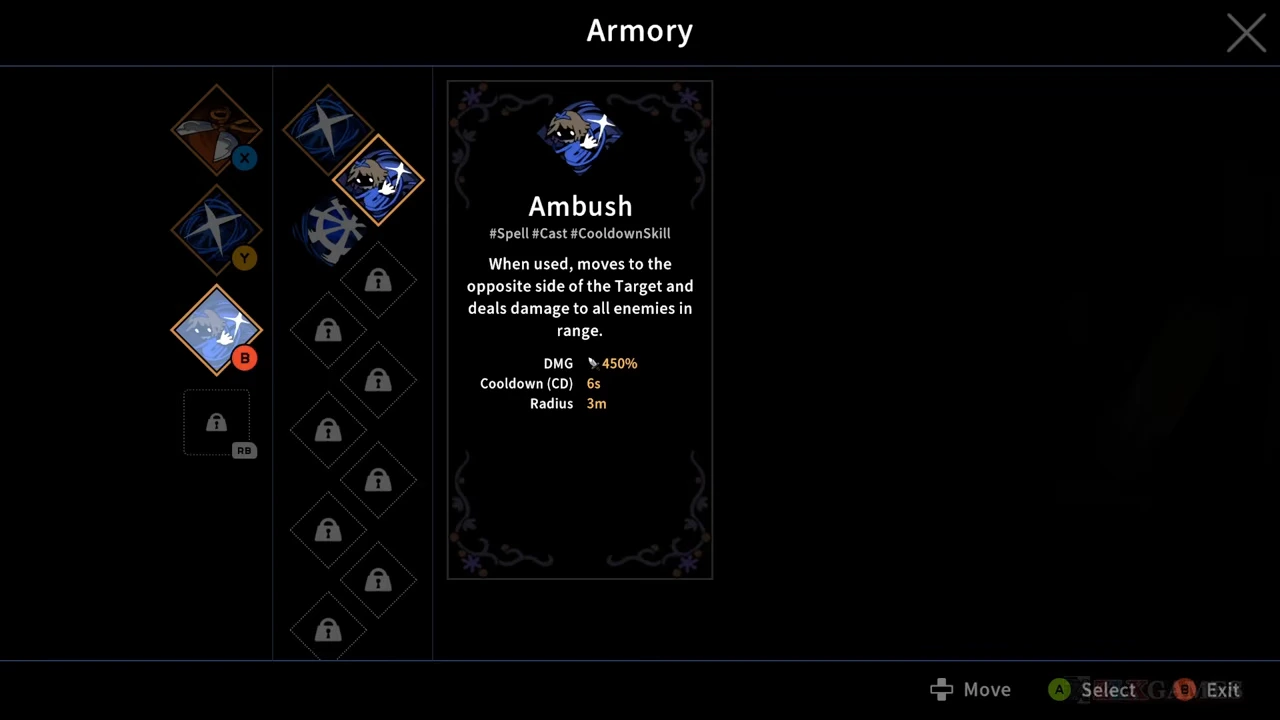
Use Opening Armory fills Scissors, Slash and Ambush. In the source frame, Slash and Ambush occupy the spell slots and the special-skill slot is locked. The preset therefore leaves Special skill blank and adds no invented early Imprint or relic.
Slash supplies an immediate area hit. Ambush crosses to the target’s opposite side, so your plan should account for where it lands. The preset is a concrete starting configuration, not an assertion that this combination is the best answer to every boss.
Use the Flower preset only when you have its choices
Use Recorded Flower setup fills Singing Scissors, Summon Doll, Butterfly Walk and Swamp Echo. CT602’s earlier Epilogue 2 segment shows that equipped configuration; its exact build is not displayed in that segment. It is a later setup, so it should not replace the opening preset on an account that lacks those options.
The preset leaves Imprint and relic notes empty. It does not assume that a random reward will appear, and it does not turn the recorded starting setup into a complete endgame build. Use the Flower guide to distinguish the spell’s charged release from the Flower’s separate enemy-contact damage.
Loading any preset replaces every field, including your existing notes. Export a plan you want to keep before loading a different preset.
Use the Crow support preset for the recorded mixed setup
Use Recorded Crow support setup fills Lapis Scissors, Shadow Surge, Summon Doll and Swamp Breath. The recorded Epilogue 2 combat HUD shows those four slots, and its damage breakdown separately names Shadow Surge and Crow. The Swamp Breath name and icon are visible in the earlier Armory menu.
This preset records the equipped skills, with Imprint and relic notes blank. It does not supply a verified Crow-specific advanced upgrade path. Lapis contributes most damage in the captured encounter; the preset is not evidence that Crows alone carry a run. Later footage changes a spell to Gem Shards, so the later final boss result is not assigned to this earlier loadout.
Write the condition your reward must satisfy
Imprints and relics are free-text notes rather than selectable rewards. Write the actual name you see and the component or trigger it changes. For example, separating a spell’s initial hit from its projectile or summoned component makes the note useful when the reward menu appears.
The selected-trigger list explains the base recorded behavior. It does not apply your note as a hidden numerical modifier. If you type an Imprint that changes a skill’s behavior, the tool will preserve those words but will not calculate the modified attack, cooldown or damage.
Special skill accepts up to 100 characters; each reward note accepts up to 1,000. These limits keep a saved plan compact. They are text limits for this tool, not the game’s equipment limits.
Save, copy and reset the plan
Every edit saves to this browser’s local storage when that storage is available. Reloading the page restores the same plan. There is no account sync and no connection to your game save; another browser or device will not automatically receive it.
Export text opens a read-only text box containing the chosen names and your notes. Focus the box to select the text, then copy it with your device’s normal copy action. Export can include blank choices, labelled as not selected, so a partial plan is still reusable.
Reset plan clears the fields and removes this tool’s saved plan from the browser. If storage is blocked or full, the status message explains that changes remain only for the session. Export the text before leaving when saving is unavailable.
If an older saved record contains a removed choice or duplicate spell, the restored view clears that invalid choice. An unreadable or incompatible record is not silently overwritten on page load; the status message explains the issue. Editing or resetting explicitly replaces or clears that stored record.